
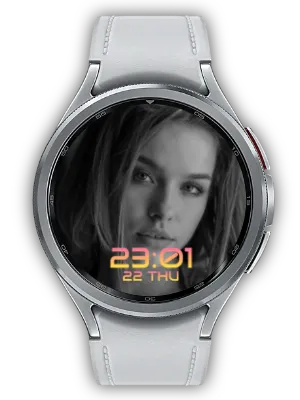

Your Photo Album, on Your Wrist
Keep family portraits, pet photos and travel memories close whenever you check your watch. My Photo Watch Face: Album sends photos from your phone to Wear OS and supplies them to My Photo Tile or a compatible watch face photo slot.
Album manages the photos; a separately installed Watch Face Format (WFF) watch face provides the clock design. Pair your album with Thin, Clean, Cute or Circle and choose the style that suits your photos.

Key Features
- Add photos from your gallery or another app’s share menu and sync them to your watch.
- Rotate, flip, adjust brightness and apply one of five filters directly in the app.
- Long-press and drag to select several photos and tidy your album in fewer steps.
- Swipe to My Photo Tile for photos, a date or D-Day information.
- Set the automatic photo rotation interval for a compatible WFF photo slot.
Add Photos and Keep Your Album Organized
Use the + button to select one or more photos, or send an image from a gallery, messenger or photo editor through its share menu. Reorder the photo list on your phone to arrange your memories, and sync additions and deletions to your paired watch.
Long-press a photo and drag across the list to select several images. Select all, clear your selection or delete the selected photos when you want to refresh a travel album or make room for new favorites.

Edit Photos Before They Reach Your Watch
Tap a photo to open the editor. Rotate a sideways shot, flip an image, brighten a dark portrait or choose one of five filters to give the album a consistent mood.
Successfully saved edits are synced to the watch, so you can prepare your photos on the larger phone screen. If saving fails, the previous photo is retained.
Face-Centered Cropping for Small Screens
When importing photos, Album resizes them for the watch and uses face-centered or central cropping according to your setting. Face-centered cropping helps keep the people in a portrait visible on the small display.
The crop setting applies to newly imported photos. To apply a different crop setting to an older image, remove it from the album and add it again.
A Photo Tile with Dates and D-Day
Add My Photo Tile and swipe to your memories while keeping your current watch face. Tap the Tile to move to the next photo, or enable shuffle for a different order.
Choose D-Day or date information and adjust its position from the phone. Pair an anniversary or upcoming trip with a meaningful photo; these information and shuffle settings apply to the Tile.

A Rotating Album in a Compatible Photo Slot
Install a compatible WFF watch face and select My Photo in its photo or background-photo slot. Set the complication interval in Album to control automatic photo rotation without replacing the album whenever you change styles.
Photo slots must support photo images. Tapping to advance a photo depends on the selected face and slot. Set the clock’s available fonts, colors, size and position in the watch face’s Customize screen. Turn Always-on Display (AOD) on or off in the watch’s system settings.
Find a Watch Face to Match Your Photos
Open Watch faces in Album to browse compatible designs. Thin is the first recommendation; use the preview to choose a look and open Google Play to install it on your watch.
If the catalog cannot refresh, a cached or built-in list remains available. If Google Play cannot open on the watch, the app opens it on your phone so you can continue installation.
Make It Part of Your Day
- Family and pets: keep favorite portraits one swipe away in a Tile.
- Travel: organize a collection of trip photos and let a compatible photo slot rotate through them.
- Anniversaries: show D-Day information alongside a meaningful photo in the Tile.
Use Your Album With WFF Watch Faces
Album manages and syncs your photos. Install a compatible Watch Face Format (WFF) watch face separately to display the album behind the time or inside a photo frame. Thin is the first recommendation; the other designs let you choose typography and layouts to suit your photos.
After installing and applying the face, long-press it to open Customize, select its compatible photo slot and choose My Photo. Set the photo rotation interval in Album; adjust the clock’s available size, position and colors in the face’s Customize screen. Turn Always-on Display (AOD) on or off in the watch’s system settings. The previews below show separate WFF designs connected to a photo provider.
My Photo Watch Face: Thin
Thin’s slim typography leaves more of the photo visible. It suits detailed travel scenes, artwork and close-up portraits. A larger time size or a more contrasting preset can help the slender digits remain readable over a busy picture.

My Photo Watch Face: Clean
Clean pairs a full-screen photo with a clear sans-serif digital clock. Use a family portrait for a personal everyday face, or a simple landscape for a quieter look. Move the clock to an area with space so the subject remains easy to see.

My Photo Watch Face: Cute
Cute brings rounded clock lettering and soft pastel gradient presets to your photos. Pair it with family, pet or flower pictures for a warm everyday look. Adjust time size and placement to balance the friendly typography with the image.

My Photo Watch Face: Future
Future combines geometric Orbitron-style lettering with your photo background. Use an architectural scene, cityscape or a favorite portrait to create a personal sci-fi look. Medium and Large clock sizes and top, center or bottom positions help you choose the emphasis.

My Photo Circle Watch Face
Circle gives your photo its own large round frame and keeps the digital clock in the opposite part of the screen. Changing the clock’s top or bottom position moves the photo to the other side, letting you choose a balanced composition for a portrait or pet photo.

My Photo Watch Face: Dial
Dial pairs a round photo with a small analog clock, hour and minute hands and twelve indexes. Choose Normal to give the photo more space, or Large to emphasize the clock. Swap the top and bottom layout and choose Classic White, Gold, Sky or Coral hands to suit the image.

My Photo Quote: Daily Inspire
Combine a meaningful photo with a sentence you want to remember. A family portrait and a favorite quote, or a travel image and a short affirmation, can share the same watch face. Choose a less busy photo and concise text to keep both visible.
For Photo & Quote, connect Album to the photo slot and a compatible Long Text provider to the quote slot. Manage your own quote collections with Quote Moment

How to Get Started
- Install Album on your phone and paired Wear OS watch, then check that the mobile app shows Connected.
- Add photos and let them sync to the watch.
- Open Watch faces in Album and install a compatible WFF face; Thin is the first recommendation.
- Apply the face, long-press to open Customize, and choose My Photo in its photo slot.
If photos are missing, check that the companion is installed on both devices, the connection is active and watch storage is available. My Photo only appears in compatible photo/image slots. Change the clock style in the WFF face’s Customize screen, not in Album.
Updates
- Wear onboarding fix: Fixed a startup interruption when the Wear onboarding screen could not load the app icon.
- Photo editing and selection: Added rotation, horizontal flip, brightness adjustment and five filters. Long-press and drag selects several photos, with select-all, deselect and delete actions. Saved edits sync to the watch; failed saves keep the previous photo.
- Photo companion and WFF setup: Album now supplies synced photos, a Tile and photo complications. Install a compatible face from the WFF catalog and assign My Photo to its photo slot. Tile settings and WFF photo-rotation intervals are explained separately.
- Cropping and synchronization: Clarified that face-centered cropping applies to new imports and improved supported-language help and accessibility text. Updated the photo-frame experience for more consistent phone-to-watch synchronization.
- Compatibility update: Updated to meet Android 15 (API 35) target requirements.
- Complication Interval Settings: You can now set the photo change interval for complications.
- Tile Support: Supports watch tile feature for quick photo viewing.
- Photo Complication Support: Supports displaying photos as complications on other watch faces.
- D-Day Setting Feature: Added the ability to set and display D-Day countdown on the watch face.
- Ad Removal Feature: Added the option to remove ads through in-app purchase.
- Portrait Mode Lock: Locked screen orientation to portrait for better usability.
- Removed Unnecessary Connection Notices: Removed unnecessary connection-related notification messages.
- Updated Guide Messages: Updated in-app guide messages for better clarity.
- Browser Error Fix: Fixed errors occurring in the built-in browser.
- Icon Animation: Added animation effects to icons for visual enhancement.
- Back Key Background Navigation: Changed back key behavior to move the app to background instead of closing.
- Info Screen Update: Updated the information screen with the latest content.
- Watch App Install Button: Added a button to install the watch app directly from the mobile app.
- Battery Info Display: Supports displaying battery level information on the watch face.
- watch-go.com Info Update: Updated watch-go.com related information.
- Time Text Margin Adjustment: Adjusted time display text margins for better readability.
- Connection Message Fix: Fixed incorrect connection guide messages.
- Removed Unnecessary Connection Toasts: Removed unnecessary connection notification toasts.
- Privacy Settings: Added privacy protection settings option.
- Watch Face Format Guide: Added information about Watch Face Format.
- Mobile Connection Improvement: Improved connection stability with mobile devices.
- AI Face Recognition: Supports AI-based face recognition to automatically detect faces in photos.
- Feature Suggestion Messages: Added suggestion messages to guide users about useful features.
We welcome your feedback and suggestions.


