
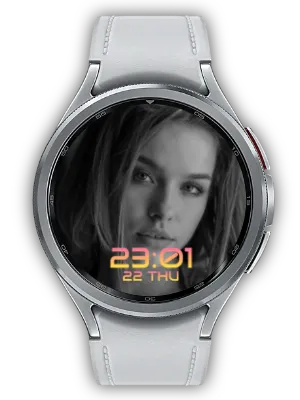

What It Does
Use a full-screen photo background with a clean sans-serif digital clock.
This Watch Face Format (WFF) watch face supports Always-on Display (AOD).
Customize Your View
Choose clock size, position and color presets in the watch face customization screen. Select a contrasting color and a clear area of the photo to make the time easier to read. Clock position: Top, Center or Bottom.
Select a Photo provider in the image slot to choose a single photo. Available providers depend on your watch and installed apps.

A Style for Your Everyday Glances
Clean pairs a full-screen photo with a clear sans-serif digital clock. Use a family portrait for a personal everyday face, or a simple landscape for a quieter look. Move the clock to an area with space so the subject remains easy to see.
One Favorite Photo or a Rotating Album
In Customize, select the photo slot and choose a compatible Photo provider to display one image. The available providers and photo-picker flow depend on your watch and installed apps. Choose a picture whose main subject remains visible within the face’s photo area.
For a rotating album, install My Photo Watch Face: Album on both the phone and watch, sync your photos and choose My Photo in this face’s compatible photo slot. Edit photos and set the rotation interval in Album; customize the clock design in this watch face.
Make the Time Easy to Read
Open Customize by long-pressing the watch face and adjust the available size, position and color settings. Keep the clock away from a portrait’s face or the most detailed part of a picture, and choose a color with enough contrast.
Check the result with the actual background you plan to use. A simpler image or a different supported layout can give the clock and information more room without changing the image provider.
Always-on Display and Setup Tips
The face uses Watch Face Format and supports Always-on Display (AOD). With AOD enabled on the watch, the system switches to the ambient presentation; its appearance can be simpler or dimmer than the active screen.
If the face is missing from the selection list, confirm that it is installed on the watch and that the watch supports WFF. If photos or text are missing, reopen Customize and select the correct compatible provider. Companion settings supply content; this face’s settings determine its presentation.
How to Get Started
- Install the watch face on a compatible Wear OS watch and select it in the watch face list.
- Long-press the watch face and open Customize.
- Select the relevant complication slot and choose a compatible provider.
- Adjust the clock style and confirm your changes.
Related Apps
For a rotating album, install My Photo Watch Face: Album on your phone and watch, sync photos and select My Photo in this face’s compatible photo slot. Album supplies the photos; this watch face controls the clock and AOD.
Updates
- Compatibility update: Updated to meet Android 15 (API 35) target requirements.
- Release: The product repository records this version but does not provide detailed release notes.
- Date Display: Added date display feature on the watch face.
- Initial Release: First version of the app has been released.
We welcome your feedback and suggestions.


