
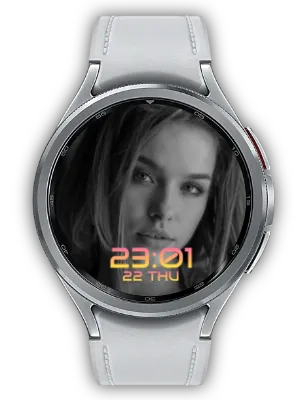


Set up your watch face
Install My Photo Watch Frame 9.2.0 or later on both your Android phone and your Wear OS watch.
Get My Photo Watch Frame on Google Play
- Open Frame on your phone and send a photo to your watch. Turn off automatic photo changes in Frame if you want to keep the same picture.
- Turn on D-Day in Frame. Choose one date and give the event a short name that will fit on your watch.
- Install Photo D-Day on your watch and select it in the watch face picker. Touch and hold the face, then open Customize.
- In the photo slot, select the My Photo Watch Frame photo complication. In the D-Day slot, select the Frame D-Day complication.
Requires a Wear OS 5 (Android 14) or later watch with Watch Face Format (WFF) version 2.
Keep a meaningful photo beside a date you’re looking forward to or one you want to remember. Frame sends the photo and keeps track of the event date. Photo D-Day gives the photo, clock, and day count their own spaces on the watch face.
Photo card and day count
The landscape card shows the center of your image. Keep faces and important details near the middle, since the top and bottom may be cropped. A short event name appears just above the count.
With a date 30 days ahead you’ll see D-30. On the day it becomes D-DAY, and 30 days afterward you’ll see D+30. If the event is missing, check that D-Day is enabled in Frame and that you’ve assigned its complication to the D-Day slot. The watch shows B-day with D+15, meaning the event date was 15 days ago.

Choose a D-Day accent color
Open Customize and choose Ivory, Sky, Rose, or Mint for the D-Day count. The comparison shows how each color looks on D+15.

Clock Styles and Always-on Display
Choose plain white digits or one of five colored digit styles for the clock. The time follows your 12- or 24-hour setting, and the date follows the watch language and region.
Always-on Display (AOD) keeps the time and day count visible. The photo and event name reappear when the watch wakes.
Which day will you put on your watch?
- A trip you’ve planned. Choose a picture of your destination and watch the days tick down until you leave.
- An anniversary. Pair a shared photo with your anniversary date and keep it close as the day approaches.
- A first day worth remembering. Choose the date you adopted your pet or started a project and follow the days that have passed.
See how to send and rotate photos in My Photo Watch Frame
Updates
- Added the photo card, D-Day display, four accent colors, six clock styles, and Always-on Display. Requires My Photo Watch Frame 9.2.0 or later.


